ダークモード
主要なプロットコンポーネントの色をダークテーマに合うものに設定することで、ダークモードを使用してプロットを作成できます。
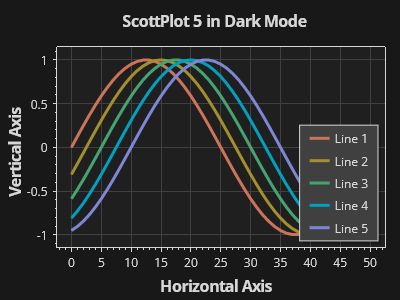
ScottPlot.Plot myPlot = new();

// プロットに追加される新しい項目の色付けに使用するカラーパレットを設定する
myPlot.Add.Palette = new ScottPlot.Palettes.Penumbra();

// プロットに要素を追加する
for (int i = 0; i < 5; i++)
{
    var sig = myPlot.Add.Signal(Generate.Sin(51, phase: -.05 * i));
    sig.LineWidth = 3;
    sig.LegendText = $"線 {i + 1}";
}
myPlot.XLabel("水平軸");
myPlot.YLabel("垂直軸");
myPlot.Title("ダークモードの ScottPlot 5");
myPlot.ShowLegend();

// 図の色を変更する
myPlot.FigureBackground.Color = Color.FromHex("#181818");
myPlot.DataBackground.Color = Color.FromHex("#1f1f1f");

// 軸とグリッドの色を変更する
myPlot.Axes.Color(Color.FromHex("#d7d7d7"));
myPlot.Grid.MajorLineColor = Color.FromHex("#404040");

// 凡例の色を変更する
myPlot.Legend.BackgroundColor = Color.FromHex("#404040");
myPlot.Legend.FontColor = Color.FromHex("#d7d7d7");
myPlot.Legend.OutlineColor = Color.FromHex("#d7d7d7");

myPlot.SavePng("demo.png", 400, 300);
このレシピは、プロットのスタイリングカテゴリに含まれる多くのレシピの 1 つです