シンプルなタッチ
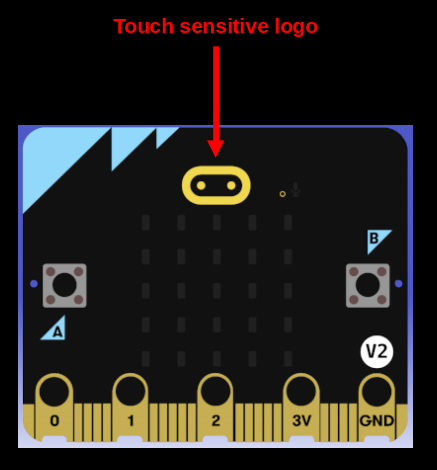
micro:bit のロゴに触れたときに、LED マトリクスに文字や絵文字を表示するシンプルなプログラムを書いてみましょう。この例では、ロゴに触れている間は電圧の絵文字シンボル (⚡) を表示します。
テンプレートからプロジェクトを作成する
テンプレートを使用して新しいプロジェクトを生成するには、次のコマンドを実行します:
cargo generate --git https://github.com/ImplFerris/mb2-template.git --rev 88d339b
プロジェクト名を尋ねられたら、smiley-buttons のような名前を入力します
"BSP" または "HAL" を選択するよう求められたら、"BSP" オプションを選択します。
ボード、タイマー、ディスプレイを初期化する
まずは、通常どおりボード、タイマー、ディスプレイをセットアップします:
#![allow(unused)]
fn main() {
let board = Board::take().unwrap();
let mut timer = Timer::new(board.TIMER0);
let mut display = Display::new(board.display_pins);
}
電圧記号用の LED マトリクス
#![allow(unused)]
fn main() {
let led_matrix = [
    [0, 0, 0, 1, 0],
    [0, 0, 1, 0, 0],
    [0, 1, 1, 1, 0],
    [0, 0, 1, 0, 0],
    [0, 1, 0, 0, 0],
];
}
ロゴのピンをタッチ入力として設定する
GPIO ピン p1_04(内部的に小さな micro:bit ロゴに接続されています)をフローティング入力として設定します。これにより、静電容量式センシングを使用してタッチを検出できます。
ロゴに触れると、micro:bit は LED マトリクスに電圧記号を 500 ミリ秒間表示し、その後ディスプレイをクリアします。
#![allow(unused)]
fn main() {
// Logo に接続されたピン
let mut touch_input = board.pins.p1_04.into_floating_input();

loop {
    if touch_input.is_low().unwrap() {
        display.show(&mut timer, led_matrix, 500);
    } else {
        display.clear();
    }
}
}
完全なコード
#![no_std]
#![no_main]

use embedded_hal::digital::InputPin;
use microbit::{board::Board, display::blocking::Display, hal::timer::Timer};

use cortex_m_rt::entry;

#[panic_handler]
fn panic(_: &core::panic::PanicInfo) -> ! {
    loop {}
}

#[entry]
fn main() -> ! {
    let board = Board::take().unwrap();
    let mut timer = Timer::new(board.TIMER0);
    let mut display = Display::new(board.display_pins);
    let led_matrix = [
        [0, 0, 0, 1, 0],
        [0, 0, 1, 0, 0],
        [0, 1, 1, 1, 0],
        [0, 0, 1, 0, 0],
        [0, 1, 0, 0, 0],
    ];

    // Logo に接続されたピン
    let mut touch_input = board.pins.p1_04.into_floating_input();

    loop {
        if touch_input.is_low().unwrap() {
            display.show(&mut timer, led_matrix, 500);
        } else {
            display.clear();
        }
    }
}
既存のプロジェクトをクローンする
私が作成したプロジェクトをクローンする(または参照する)こともでき、bsp/logo-touch フォルダーに移動します。
git clone https://github.com/ImplFerris/microbit-projects
cd microbit-projects/bsp/logo-touch
フラッシュ
コードが完成したら、次のコマンドを使用してプログラムを micro:bit にフラッシュできます:
cargo flash